
How-to guides
How to organize accounting work in Claister
Choose a concrete job. Follow the actual app steps, then check that the result matches the client and work you intended.
Each guide includes prerequisites, a real product screenshot, verification steps and common questions. Button names match the current English app UI. Screenshots use fictional data; your team configures and reviews its own process.
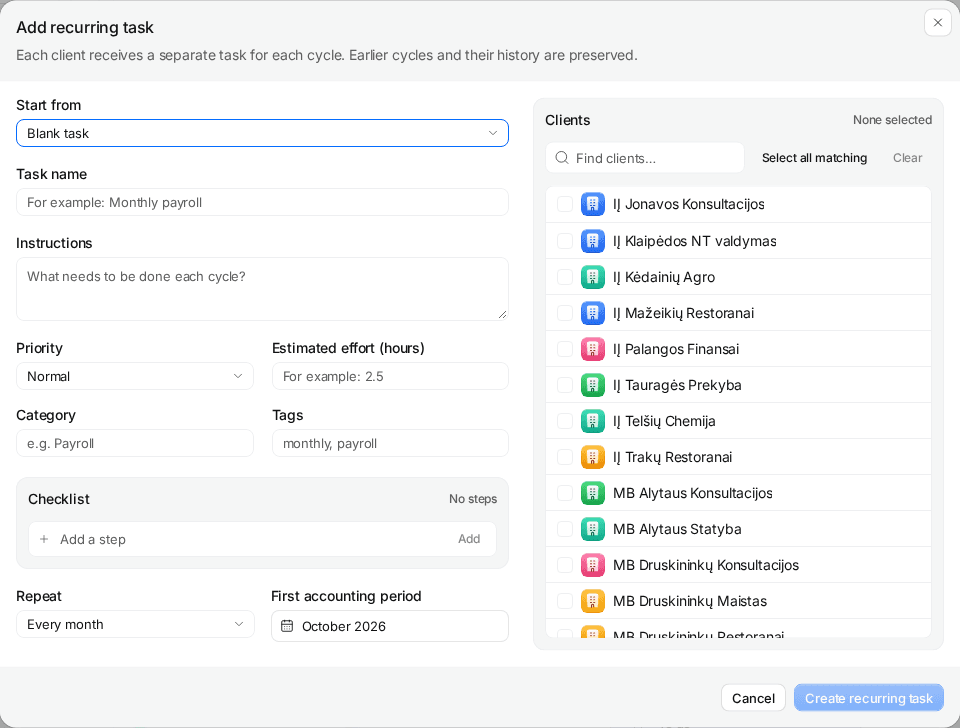
How to set up recurring accounting tasks in Claister
Create a recurring accounting task, choose clients and the first period, check due dates, then verify the generated work in Claister.
Explore the details →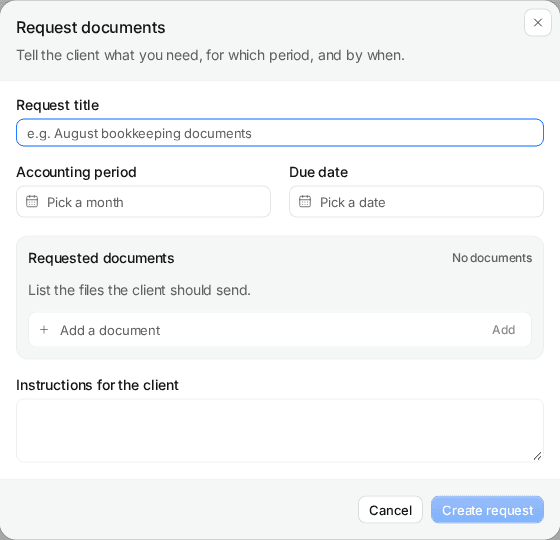
How to collect missing client documents in Claister
Create a period-specific document request, review the client message, check returned files and follow up on only the remaining missing items.
Explore the details →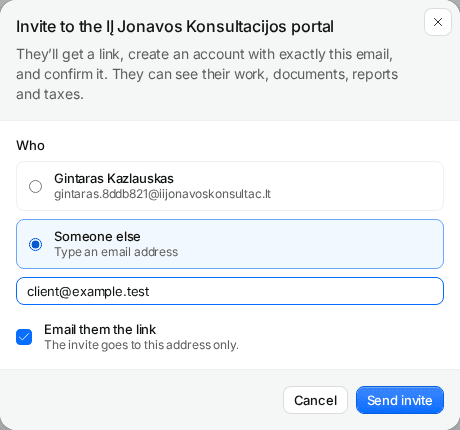
How to invite a client to the Claister accounting portal
Check the client portal preview, select the exact recipient email, create or send an invitation and verify access before sharing client work.
Explore the details →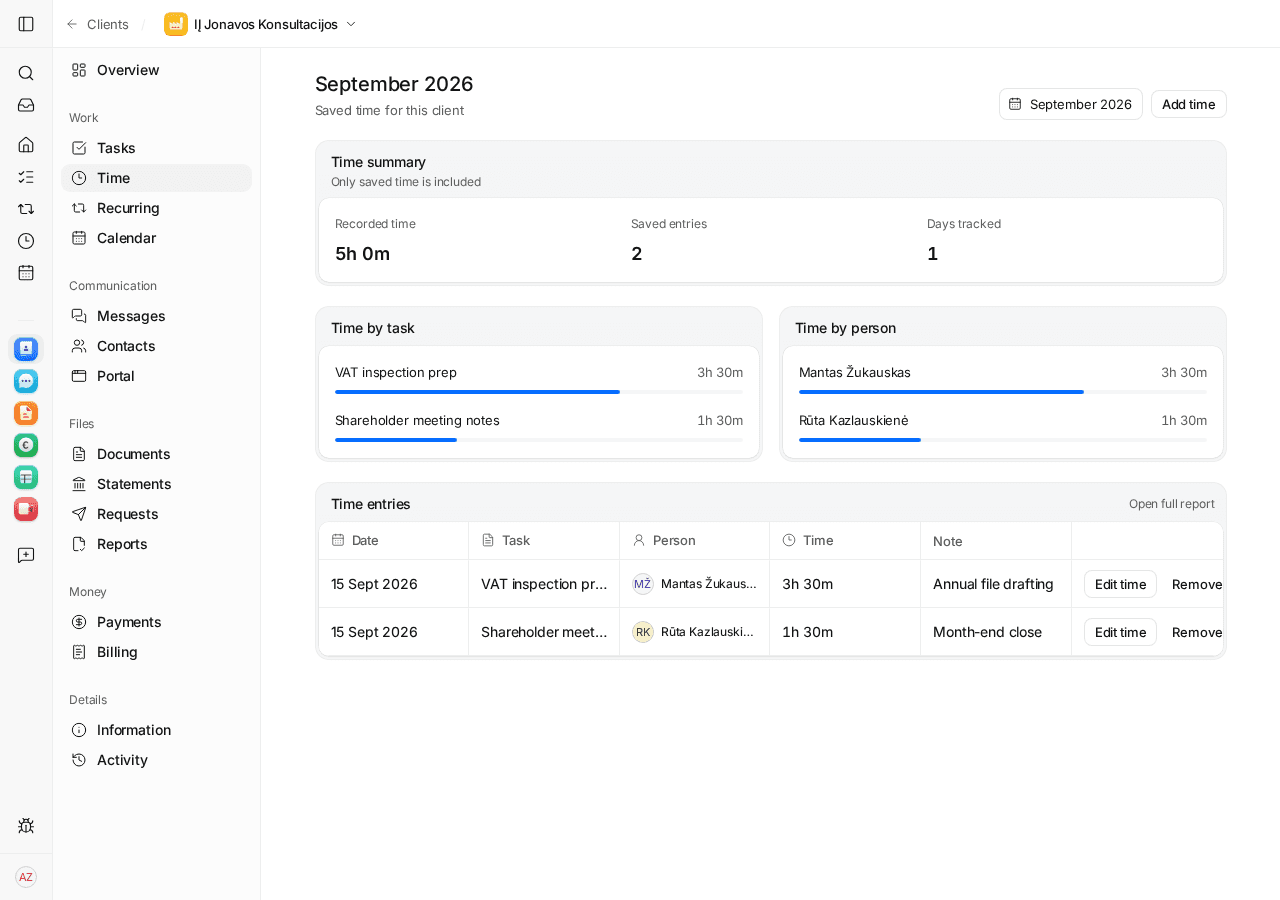
How to track accounting time by client in Claister
Record manual time or use a timer, review and save the entry, then inspect the client’s monthly task and person breakdowns.
Explore the details →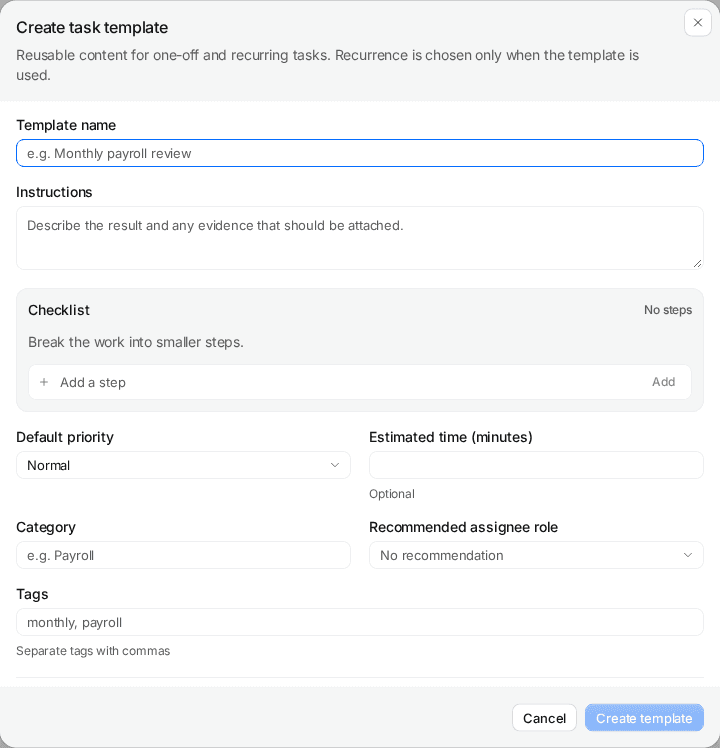
How to move accounting work from spreadsheets to Claister
Audit a spreadsheet task tracker, pilot one client process in Claister, reconcile active tasks and agree a cutover without duplicating work.
Explore the details →