
Summary
Identify what each spreadsheet row represents, separate recurring routines from one-off work, and map the active items to clients, owners, dates and statuses. Configure a small pilot in Claister, reconcile it against the source, then agree which system owns new task updates. Keep the old tracker as a controlled reference rather than a parallel live queue.
Before you start
Choose the owner of the migration, preserve the source and confirm access to the intended clients.
Manual configuration
This guide describes reviewed setup in the app. It does not promise automatic CSV import of a workflow.
Finished when
Every active pilot item has an owner and state in Claister, and the team knows where to update it.
1Identify what the tracker is managing
Preserve a dated reference copy of the existing tracker. Inspect a small sample: is each row a client, a monthly obligation, a document request or an individual task? Mixed row types need different treatment.
Separate active work from completed history and financial records. The accounting ledger remains the financial source of record. Do not move posted balances or statutory evidence into a task checklist just because those columns sit beside the task tracker.
2Map active items to a clear task model
- Client: the exact company the work belongs to.
- Output: an actionable task name and relevant accounting period.
- Responsibility: one clear primary owner and any agreed review handoff.
- Timing: the internal due date and, for repeats, the cadence and first period.
- State: what is open, in progress, blocked or complete, and what evidence supports that state.
Resolve ambiguous color codes and initials with the team before transferring them. A green cell may mean prepared, reviewed or merely received. Do not mark a task complete unless you know what completion meant in the source.
3Configure one repeatable client process
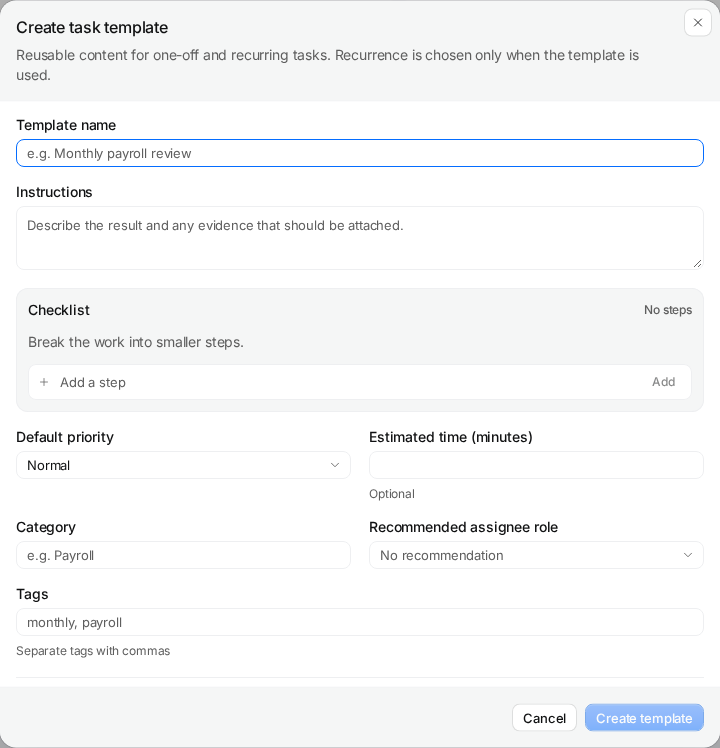
Open task templates and choose New template to define reusable instructions, checklist steps and an effort estimate. A template is a starting point for work, not a completed task. Keep client-specific details in the appropriate task or client context.
Use the recurring task instructions for repeatable work, starting with one client and the intended first period. Create genuinely one-off items as ordinary tasks. For missing files, use a document request so the client list and response are tracked in the relevant process.
4Reconcile the pilot with the source
Compare the active pilot items one by one with the preserved tracker. Verify client, output, period, owner, deadline, status and checklist. Check for generated repeats that duplicate manually created tasks and for historical periods that accidentally became overdue.
Have the person responsible for the work inspect the result. Resolve gaps before expanding. If a review needs a different person, make the handoff explicit; do not assume the migration created a reviewer assignment. Record exceptions and the source reference used to resolve them.
5Agree the cutover and expand in batches
Choose when Claister becomes the place for new task updates in the pilot scope. Tell the team where to change status, record blockers and request documents. Label the former tracker as a reference and avoid updating both queues indefinitely.
Expand by a coherent process or client group after the pilot works. Reconcile each batch and check permissions, missed items and duplicates. Keep the reference according to your retention policy. Use the recurring task feature and document collection to maintain the process after the migration.
Questions
Will uploading a CSV create this workflow automatically?
This guide does not describe an automatic workflow CSV import. It covers manual, reviewed configuration of templates, recurring work, tasks and document requests.
Should we keep updating the old spreadsheet?
Agree one place for live task updates after cutover. Keep a controlled source reference for reconciliation and retention, with exceptions documented.
Do we move the accounting ledger too?
No. Claister manages client work. The existing ledger remains the financial source of record.
Screens use the current English app UI. Claister’s app is available in English and Russian; these guides are available in English and Lithuanian.
Editorial policy →Start in Claister
Set up the applicable process in your own workspace and verify it with a small client group.