
Summary
Open the client’s Portal tab, use Preview as client to check the shared view, and choose Invite to portal. Select a saved contact or enter another email. Send the email invitation or create a link for a confirmed channel, then verify that the intended person can access the intended company.
Before you start
Confirm who is authorized to receive this company’s documents and which email they will use to sign in.
Company scope
Portal access belongs to the selected client company and the invited email identity.
Finished when
The recipient has accepted access and can see the intended shared work for that company.
1Check the company and the client preview
Open the intended client, then the Portal tab. Use Preview as client to inspect the shared view before inviting anyone. Confirm that the company and visible requests or files are correct.
The preview is a staff check, not proof that an invitation has been accepted. Internal notes, private information and unshared files are not client-portal content; do not paste them into a client-facing request or message.
2Choose the exact recipient email
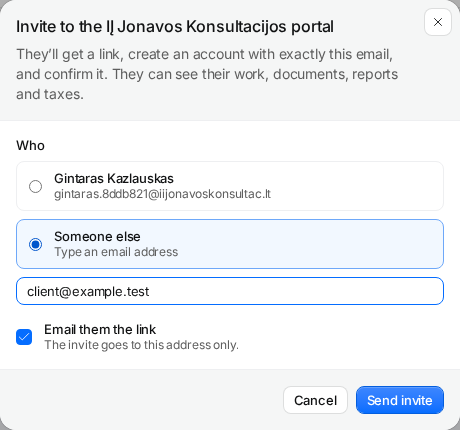
Select Invite to portal. Choose the appropriate saved contact or Someone else and enter the agreed email address. Confirm the spelling with the recipient, especially if they have several accounts or support more than one company.
The person accepting the invitation must use the invited email identity. A forwarded link is not a substitute for inviting another authorized person. Check the selected company each time you create a new invitation.
3Send the invitation or create a link
With Email them the link selected and a valid address, choose Send invite to email the invitation. Review the recipient before sending. If you will deliver the link through an agreed channel yourself, use the create-invitation option and Copy link when it is available.
Treat the invitation link as access-related information. Send it only to the intended recipient through the agreed channel. Creating or copying a link does not prove that anyone received or accepted it.
4Ask the client to accept and verify their view
Ask the recipient to open the invitation and sign in using the invited email. Have them confirm the company name and the expected requests or shared documents. If they are signed into a different account, resolve the account mismatch before sending another invitation.
Return to the client’s Portal tab and check the access state. If someone needs access for another client company, establish that company’s invitation separately rather than assuming this invitation covers every company.
5Give the client one clear first action
Send a small, relevant document request for a specific period or explain where an agreed shared file is located. Confirm that the client can complete that first action and that the team can see the response.
Keep the onboarding message focused on the portal task, not your internal workflow. Continue with collecting missing documents once access is working. For the wider access model, read the client portal feature.
Questions
Can the client accept with a different email?
The invitation is tied to the invited email identity. Confirm the intended address and account rather than relying on forwarding.
Does Preview as client grant access?
No. It lets staff inspect the shared view. The invitation and its acceptance are separate steps.
Does one invitation cover every company?
No. Check access for each selected client company and invite authorized recipients for that scope.
Screens use the current English app UI. Claister’s app is available in English and Russian; these guides are available in English and Lithuanian.
Editorial policy →Start in Claister
Set up the applicable process in your own workspace and verify it with a small client group.