
Summary
Use Add time for manual entries or Start timer for ongoing work. Check the client, task, date and duration, then save the entry. Review the client’s Time tab for the appropriate month. Saved time measures effort; it does not calculate client profitability without revenue and delivery-cost data.
Before you start
Agree which activities to record, how to handle interruptions and who may view the resulting time information.
Saved entries count
An active or stopped-but-unsaved timer is not the same as a saved entry in the totals.
Finished when
The entry appears against the correct client and month, with a task or note that explains the work.
1Agree a small recording rule
Decide whether the pilot includes preparation, review, client follow-up and internal administration. Use the same rule across the people taking part. Explain that time recording is optional in Claister; enable it for a clear question, such as how much effort a defined client process uses.
Choose the client and, where appropriate, the task before recording. A short note should explain exceptional work without copying confidential document contents into the time description.
2Record completed work with Add time
In Time, choose Add time. Check the work date, client, task where applicable, duration and note. Record the actual work period, not today’s date by default if you are entering yesterday’s work.
Review the duration and save the entry. If you are reconstructing work later, distinguish an estimate from a contemporaneous record in your internal policy. Do not fill every task with its estimated effort and call that actual time.
3Use a timer for work happening now
Choose Start timer for current work. Confirm its context and stop it when the activity ends or an interruption needs separate handling. Only one pending timer per employee is allowed across workspaces.
After Stop timer, review the date, client, task and duration, then choose Save time. Stopping the timer does not finish the review-and-save step. Resolve the pending timer before starting another one, and avoid duplicating the same work as both manual and timer entries.
4Verify the client’s monthly totals
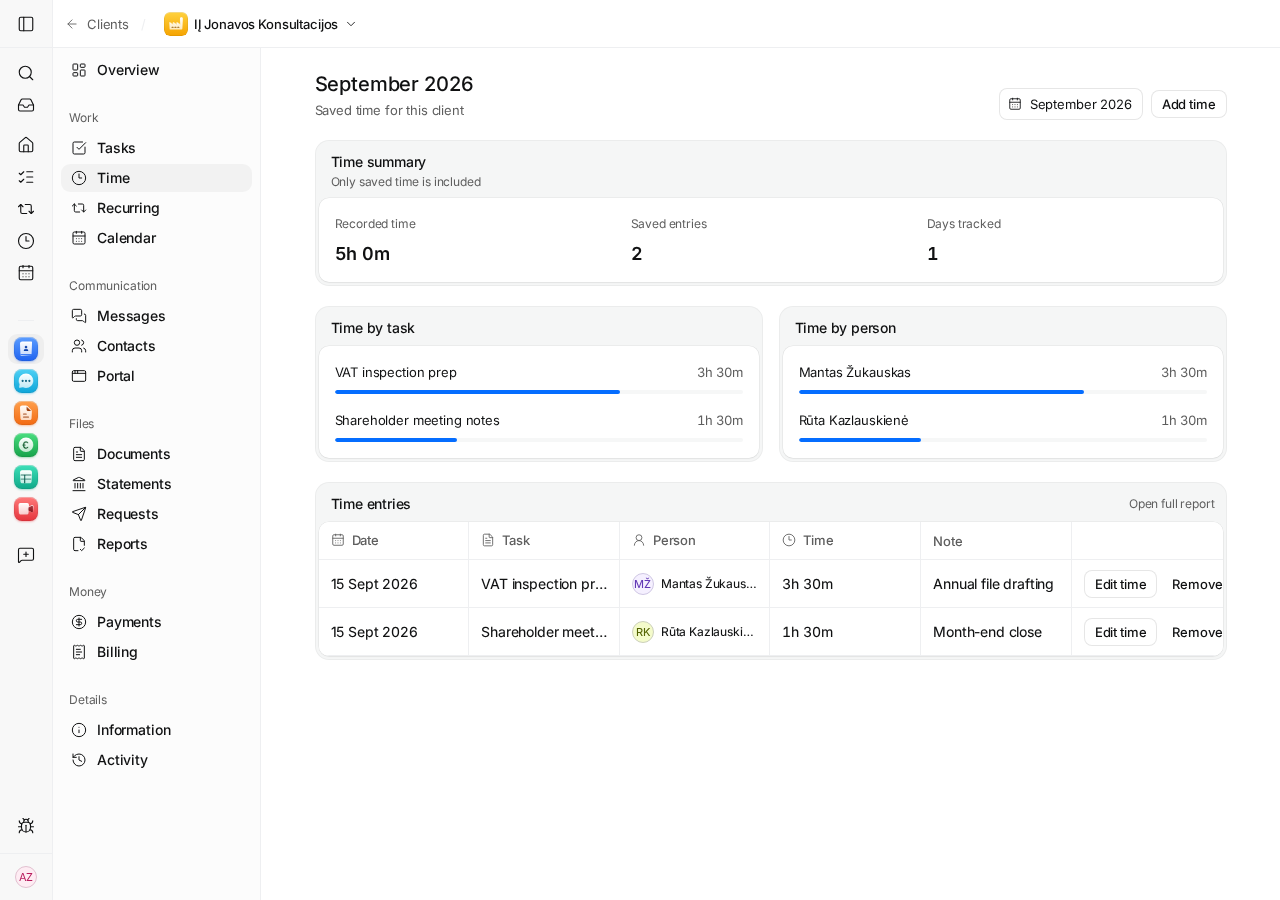
Open the client’s Time tab and choose the month in which the work was recorded. Check the total and the available task and person breakdowns. An empty current month may simply mean the entry belongs to a different month.
- Find the saved entry’s date and duration.
- Confirm the client and task match the activity.
- Check that a timer entry has not also been entered manually.
- Resolve omissions or incorrect context before using the total in a decision.
5Compare effort with scope and planning
Compare saved time with the agreed client scope and your task estimates. Investigate repeated follow-up, corrections and unusual review effort before changing a price or blaming a person. Actual time alone is not a margin calculation: revenue, delivery costs and the period’s scope are separate inputs.
For next-week workload, use the planning view and realistic estimates. Planning is based on task responsibility and dates; it is not an hourly rota. Explore accounting time tracking, the capacity calculator and fixed-fee calculator for the distinct questions they answer.
Questions
Why is a stopped timer missing from the totals?
Review and save the pending entry, then check the correct client and month. The totals use saved time entries.
Can I run timers for two workspaces at once?
No. An employee has one pending timer across workspaces; resolve it before starting another.
Does recorded time show profit automatically?
No. Time shows effort. Profitability also needs revenue, costs and a consistent scope and period.
Screens use the current English app UI. Claister’s app is available in English and Russian; these guides are available in English and Lithuanian.
Editorial policy →Start in Claister
Set up the applicable process in your own workspace and verify it with a small client group.