
Summary
Create a document request for a named client and period, list the missing items and save it. Review and send the notification separately. When the client returns documents, check them before accepting them; if anything is still missing or unsuitable, request a correction or send an edited follow-up.
Before you start
Check existing files and confirm portal access. Ask only for items you still need, with an agreed response date.
Human-controlled sending
Saving a request puts it in the portal. It does not replace reviewing and sending the notification.
Finished when
The requested documents have been reviewed and accepted, or the remaining blocker is recorded explicitly.
1Check what is actually missing
Open the client and compare the existing documents with the agreed scope for the accounting period. Avoid asking again for a bank statement or invoice already available to the team. If portal access is not ready, follow the portal invitation instructions first.
Name each missing item precisely: account and statement period, supplier and invoice date, or the relevant payroll input. Use a response date that leaves room for processing and review; distinguish it from the statutory filing deadline.
2Create the request with a clear period and list
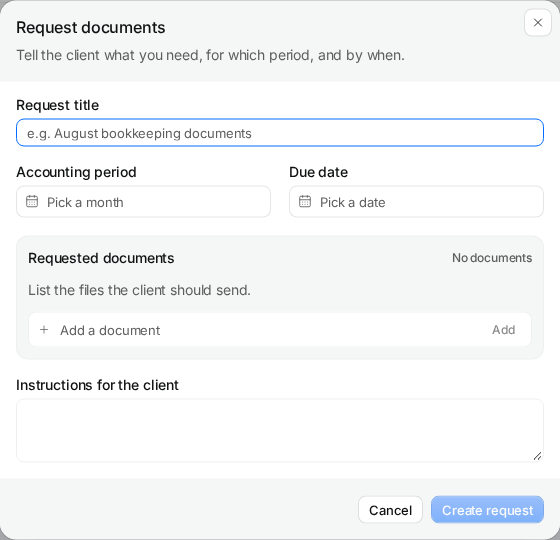
Open the client’s Requests tab or Documents → Requests and choose New request. In Request documents, enter the request title, accounting period and due date. Add each requested document as a separate list item and use the instructions field for context.
Select Create request. The request is now saved to the client portal. Check the client and list before proceeding to the message: a saved portal request and a sent notification are different events.
3Review and send the client notification
Review the proposed communication, the recipient and the portal link. Make the message specific to this request and the agreed date. The portal list should be the place where the client sees what to return; avoid maintaining a conflicting second checklist in an attachment.
Send only after a person has checked the draft. Confirm the actual sent record rather than assuming that creating the request, seeing a draft or opening a communication screen means the client received it.
4Review returned documents before accepting them
When the client returns documents, open the request and inspect the files for the correct client, period, completeness and readability. A returned status records a response; it does not prove the documents are suitable for accounting.
Use Accept documents when the response meets the request. If it does not, explain the correction needed, for example a missing statement page or an unreadable invoice. Keep the request linked to the client work so the accountant knows whether preparation can continue.
5Follow up on the remaining blocker
After three days without a newer send or return, Claister can suggest an editable follow-up. Review the current request first: a client may have responded through another channel, or the remaining list may have changed. The suggestion does not send itself.
- Mention only the items that remain missing or need correction.
- Confirm the response date is still useful for the accountant’s schedule.
- Record the internal impact if the work is blocked.
- After sending, check the sent record and stop repeating obsolete requests.
For the wider process, see document collection and the article on requesting documents from clients.
Questions
Does creating a request email the client automatically?
No. The request is saved to the portal, then the notification is reviewed and sent separately.
Does Returned mean the accountant accepted the files?
No. The accountant must inspect the response and accept it or ask for corrections.
Are follow-ups sent unattended?
No. A suggested follow-up remains editable and requires a person to send it.
Screens use the current English app UI. Claister’s app is available in English and Russian; these guides are available in English and Lithuanian.
Editorial policy →Start in Claister
Set up the applicable process in your own workspace and verify it with a small client group.