
Summary
Claister's client portal keeps client responses and shared information within the correct company. Invite people from the client record, check what the client can see, and keep internal notes and unshared documents in the firm's workspace.
Company-scoped access
Client access belongs to the relevant company rather than the firm's full client list.
A place to return files
Document requests and selected request items give an upload its context.
Control who can enter
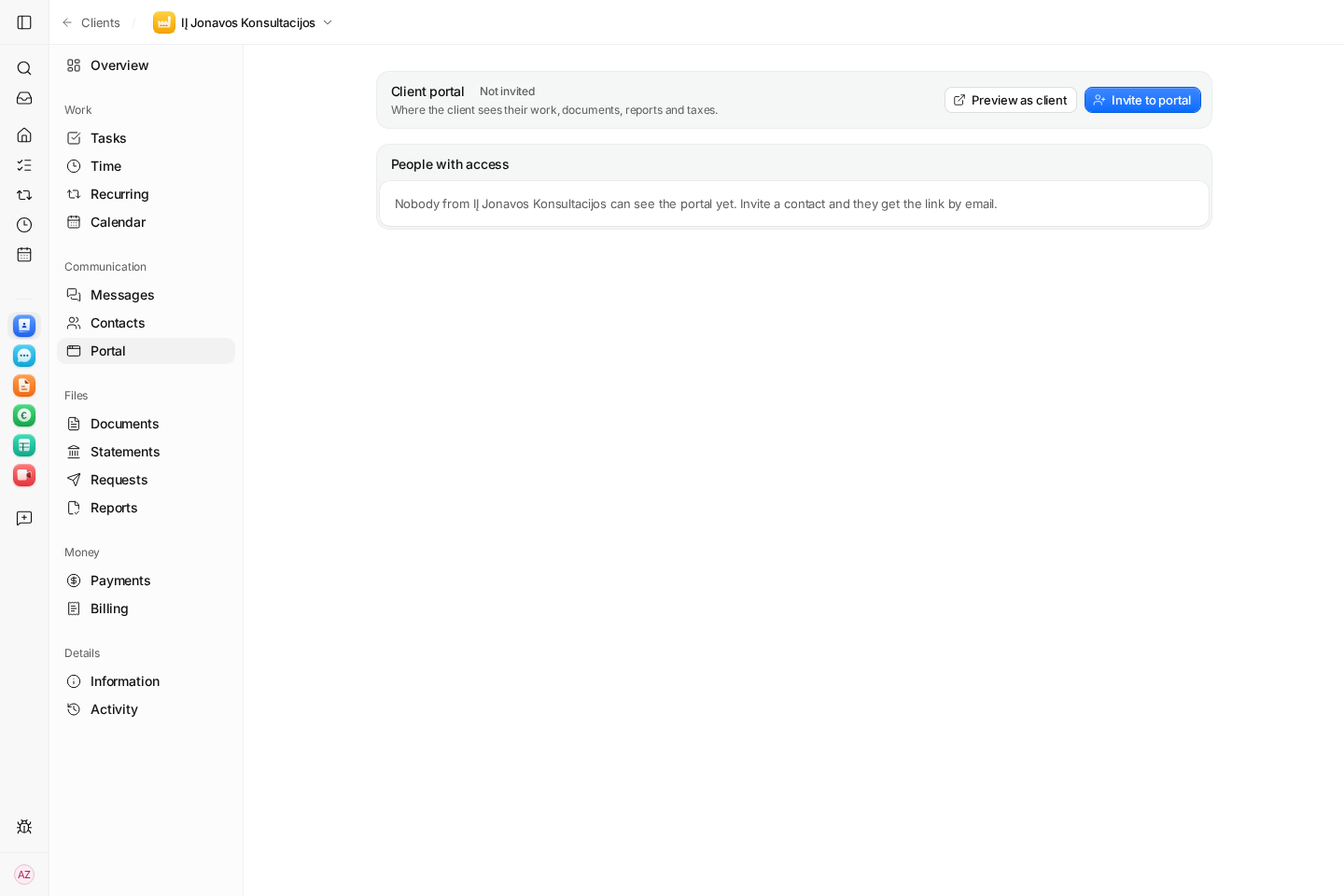
Review invitations and people with access from the client's Portal section.
Invite the right person to the right company
A portal invitation is tied to an email address and a client company. Start from the correct client record, open Portal and select the saved contact or enter the person's address. The recipient joins with that address and confirms it. Inspect the access list when the client's personnel change.
The Portal section includes a Preview as client action. Use it to review the visible company context before asking the client to use the portal. It helps you catch a request that needs better instructions or a file that has not been shared.
Keep a return attached to the original request
Use the portal for a defined request rather than a general file drop. Ask for the exact accounting period and individual documents. The client selects the relevant request item when uploading, and the accountant checks the return before accepting it.
- Share the request and supporting instructions.
- Review returned files before accepting them.
- Share the relevant report or payment support when the client needs it.
Keep staff work and client information distinct
Internal client notes, contacts, private tasks and unshared files do not become public merely because a portal exists. Staff permissions and client access are separate. Review the actual client preview when deciding what to share.
Start with one invited contact and one document request. Confirm that the contact can join, see the request and return a file. The portal invitation guide explains the setup. The current app interface is English and Russian; these website guides also have Lithuanian editions.
Questions
Can a client see other companies?
Portal responses are scoped to the companies the client is authorized to access. An invitation does not open the firm's full workspace.
Where do I check portal access?
Open the client record and its Portal section. Review the people with access and invitation status there.
Does an upload automatically complete the request?
No. Returning a document and accepting it are separate steps; the accountant reviews the evidence.
Screens use the current English app UI. Claister’s app is available in English and Russian; these guides are available in English and Lithuanian.
Editorial policy →Start in Claister
Set up the applicable process in your own workspace and verify it with a small client group.